How to Install the watchOS 26.5, tvOS 26.5, and visionOS 26.5 Release Candidate Betas
Introduction
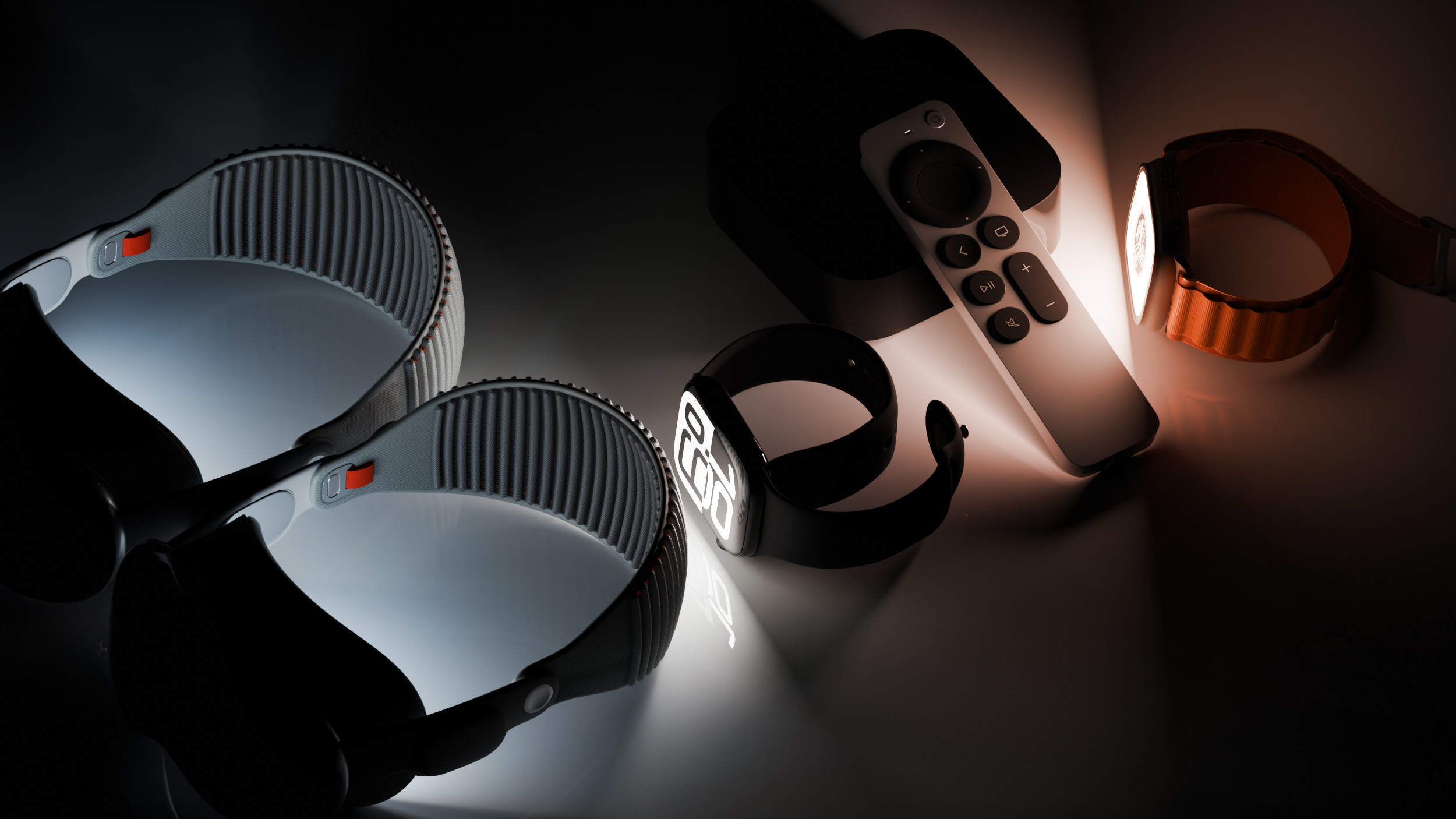
Apple has released the release candidate (RC) versions of watchOS 26.5, tvOS 26.5, and visionOS 26.5 for developers. These betas come one week after the fourth betas and are now ready for final testing before public release. This guide walks you through everything you need to install these updates on your Apple Watch, Apple TV, and Apple Vision Pro. Whether you're a seasoned developer or a curious enthusiast, follow these steps carefully to ensure a smooth installation.
What You Need
- A compatible Apple Watch (Series 6 or later for watchOS 26.5)
- An Apple TV HD or Apple TV 4K (tvOS 26.5)
- An Apple Vision Pro (visionOS 26.5)
- A free Apple Developer account (sign up at developer.apple.com)
- Each device must be signed in with the same Apple ID used for the developer account
- A stable Wi‑Fi connection
- Sufficient battery charge (at least 50%) or plugged into power
Step-by-Step Installation Guide
Step 1: Prepare Your Developer Account
- Go to developer.apple.com and sign in with your Apple ID. If you don't have one, create a free account (no paid membership required for beta access).
- Accept the latest beta agreements if prompted.
- Ensure the same Apple ID is used on all devices where you want to install the betas.
Step 2: Install watchOS 26.5 RC on Apple Watch
- On your paired iPhone, open the Watch app.
- Tap General → Software Update.
- If you have developer beta updates enabled, the watchOS 26.5 RC should appear. If not, tap Beta Updates and select watchOS 26 Developer Beta.
- Tap Download and Install. Your Apple Watch must be on its charger and have at least 50% battery.
- Wait for the installation to complete. The watch will restart automatically.
Note: This update includes a new Pride watch face matching the 2026 Pride band. Other changes are primarily bug fixes and performance improvements.
Step 3: Install tvOS 26.5 RC on Apple TV
- On your Apple TV, go to Settings → System → Software Updates.
- Ensure Get Beta Updates is turned on. If not, toggle it on and sign in with your developer Apple ID.
- Select Update Software. The tvOS 26.5 RC will appear.
- Click Download and Install. The Apple TV will restart after installation.
Note: tvOS 26.5 focuses on stability and underlying fixes – no major new features have been reported.
Step 4: Install visionOS 26.5 RC on Apple Vision Pro
- On your Apple Vision Pro, open Settings → General → Software Update.
- If you have previously enrolled in the developer beta, the RC will appear automatically. Otherwise, scroll down to Beta Updates and select visionOS 26 Developer Beta.
- Tap Download and Install. Keep the device on and connected to power.
- Wait for the update to finish; the Vision Pro will restart.
Tips for a Smooth Beta Experience
- Back up your devices before installing any beta. For Apple Watch, backup is done via your iPhone. For Apple TV and Vision Pro, ensure iCloud backups are current.
- Install on a secondary device if possible. Betas may contain bugs that affect daily use.
- Keep an eye on battery life – betas can sometimes drain power faster than stable releases.
- These release candidates are likely to be the same as the public versions next week. If you prefer stability, wait for the official release.
- Report any issues via the Feedback Assistant app on each device (or on your iPhone for watchOS).
- If you encounter problems, you can remove the beta profile (on Apple Watch and iPhone) or reset the device (for Apple TV and Vision Pro) and restore from a backup.
Remember: These updates are for testing only. They may contain incomplete features or performance issues. The public release is expected within the next week, so if you can wait, that's often the safer route.