How to Use Linux Mint's HWE ISOs for Enhanced Hardware Support
Introduction
If you've ever tried to install Linux Mint on a brand-new laptop or desktop and encountered frustrating compatibility issues—like Wi-Fi not working, screen flickering, or the system failing to boot—you're not alone. The culprit is often a kernel that's too old to support the latest hardware. Linux Mint's development team has addressed this by introducing HWE (Hardware Enablement) ISOs, which bundle a newer kernel to ensure smooth installation on cutting-edge devices. This how-to guide walks you through everything you need to know to get, verify, and use these specialized ISOs, so you can enjoy Linux Mint on even the newest machines without headaches.

What You Need
- A computer with modern hardware (released in the last 12–18 months) that may not be fully supported by the standard Linux Mint ISO.
- Stable internet connection (the HWE ISO is typically larger than the standard version).
- A USB flash drive (at least 4 GB capacity) or a blank DVD to create bootable media.
- A tool to write the ISO, such as Rufus (Windows), Etcher (cross-platform), or the
ddcommand (Linux/macOS). - Access to the Linux Mint website to download the HWE ISO.
- Basic familiarity with BIOS/UEFI settings (to change boot order or disable Secure Boot if needed).
Step-by-Step Guide
Step 1: Determine If Your Hardware Needs the HWE ISO
Before you download anything, confirm that you actually require the Hardware Enablement image. Check the make and model of your computer's CPU, GPU, Wi-Fi chipset, or other components. If your device was released within the past year and a half, or if you know it uses a very recent processor (e.g., Intel 13th/14th Gen or AMD Ryzen 7000 series), the HWE ISO is highly recommended. You can also visit the Linux Mint download page and look for announcements about kernel versions—if the latest standard ISO ships with a kernel older than 6.8, consider using the HWE version.
Step 2: Download the Correct HWE ISO
Navigate to the official Linux Mint download page. Look for the section labeled “HWE ISOs” or “Hardware Enablement Images.” As of this writing, Linux Mint 22.3 HWE includes the Linux 6.17 kernel (note: actual kernel version may have been updated since publication). Select the edition you prefer (Cinnamon, MATE, or Xfce) and the appropriate architecture (typically 64‑bit). Click the download link or use a mirror near you for faster speeds. The file name usually contains “HWE” to distinguish it from the standard ISO.
Step 3: Verify the ISO Integrity
After the download completes, verify the file to ensure it hasn't been corrupted or tampered with. On the same download page you'll find SHA256 checksums. On Linux/macOS, open a terminal and run: sha256sum [path-to-ISO]. On Windows, you can use PowerShell: Get-FileHash [path-to-ISO] -Algorithm SHA256. Compare the output with the checksum listed on the website. If they match, you're good to go. If not, redownload the file.
Step 4: Create Bootable Installation Media
Now write the ISO to your USB drive or DVD. For USB drives, use Rufus (Windows) or Etcher (cross‑platform). In both tools, select your USB drive, choose the downloaded HWE ISO, and click “Start”/“Flash.” On Linux, you can use the dd command (be careful to specify the correct device, e.g., /dev/sdb). On macOS, use the built‑in dd utility or Etcher. Once the process finishes, safely eject the drive.
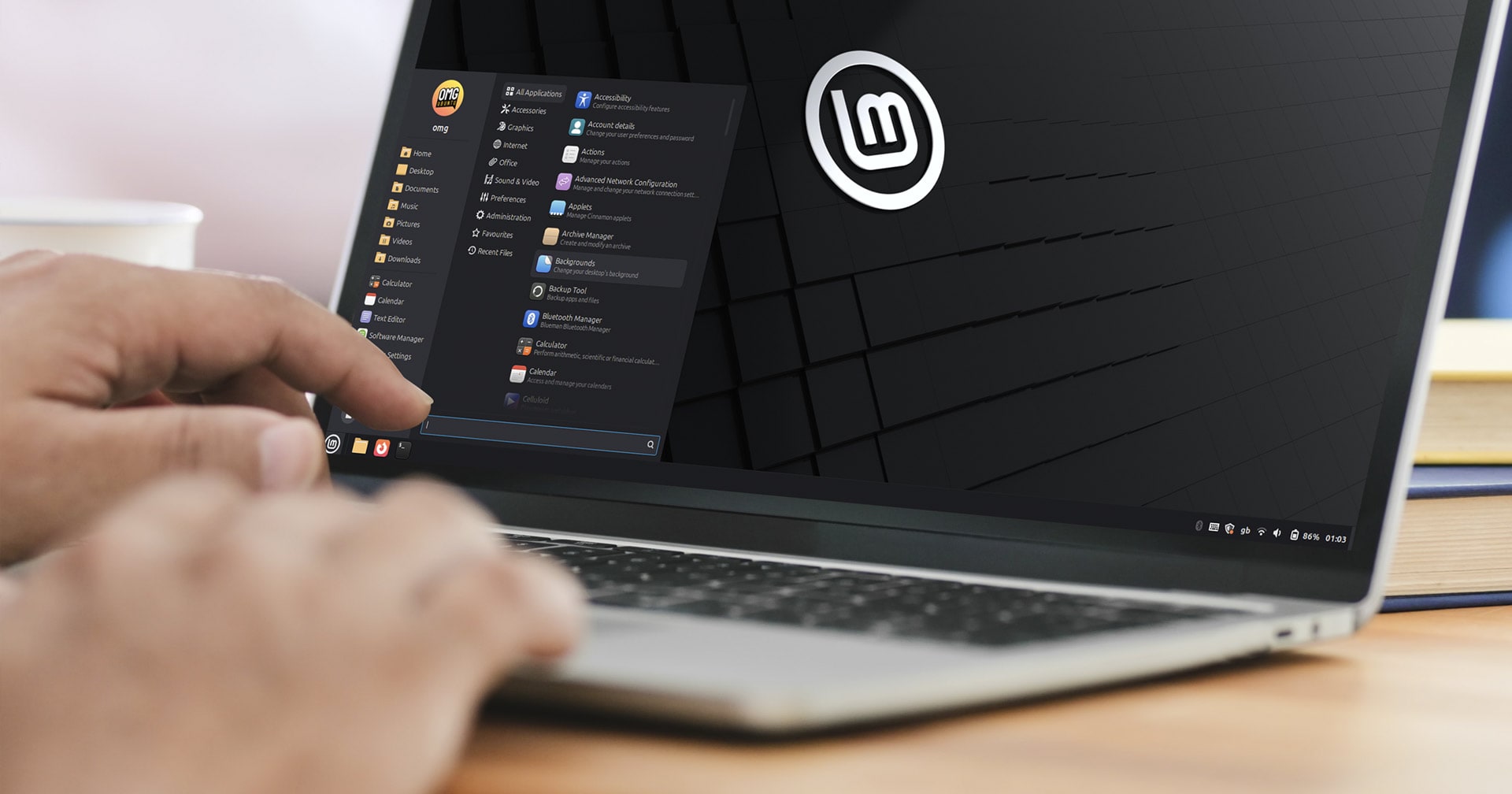
Step 5: Boot from the HWE Media and Install Linux Mint
Insert the USB or DVD into the target computer. Restart and enter the boot menu (usually by pressing F12, F2, ESC, or DEL during startup). Select your USB/DVD as the first boot device. If your system uses UEFI with Secure Boot, you may need to disable Secure Boot temporarily (Linux Mint HWE supports it, but some hardware requires a workaround). The live environment will load. You can test drive Linux Mint to confirm hardware works (Wi‑Fi, sound, graphics). Double‑click the “Install Linux Mint” desktop icon and follow the on‑screen prompts—choose your language, time zone, keyboard layout, installation type (alongside existing OS or erase disk), and create a user account. The installer will use the newer kernel included in the HWE ISO.
Step 6: Post‑Installation Updates and Kernel Management
After installation, boot into your new system. Open the Update Manager from the menu. Apply all available updates—this will pull in the latest security patches and possibly an even newer HWE kernel if one has been released since your ISO was published. To manually check the kernel version, open a terminal and run uname -r. If future HWE kernels become available, Update Manager will notify you. You can also use the “Linux Kernel” section in the Update Manager preferences to install newer kernels if needed. Restart your system once updates are complete.
Tips for a Smooth Experience
- Always verify checksums – a corrupted ISO can cause cryptic installation errors. Never skip this step.
- Back up your data before installation if you plan to dual‑boot or overwrite an existing OS.
- Check your hardware manufacturer’s support – some very new devices may require additional proprietary drivers (e.g., NVIDIA GPUs). Install them after the initial setup.
- Use a dedicated USB drive for installation; avoid using the same drive for storage as it will be wiped during the ISO writing process.
- If boot fails, try disabling Secure Boot, enabling legacy BIOS mode, or using a different USB port (USB 2.0 ports are sometimes more compatible).
- Keep an eye on the Linux Mint blog for new HWE ISO releases—they are published whenever a new HWE kernel becomes available, ensuring continued support for the latest hardware.
- Consider the “Edge” ISO if you need an even newer kernel than the standard HWE edition (sometimes offered for bleeding‑edge hardware).
- Test hardware in the live session before committing to installation—this helps confirm that the HWE kernel resolves your compatibility issues.