Installing ReactOS: A Step-by-Step Guide to the Free Windows Clone
Overview
ReactOS is an open-source operating system designed to be binary-compatible with Windows applications and drivers. Unlike traditional operating systems, it is built from scratch—not based on Windows, Linux, or macOS—making it a unique alternative for users who want a familiar Windows-like environment without licensing fees. This guide walks you through the entire installation process, from downloading the latest release to booting into a fully functional ReactOS desktop. Whether you are a curious enthusiast or a developer testing compatibility, this tutorial covers everything you need to get started.
Prerequisites
Hardware Requirements
- Processor: Intel Pentium or compatible (x86/x64)
- RAM: 256 MB minimum (512 MB recommended)
- Hard Disk: At least 2 GB of free space
- Graphics: VGA-compatible (800x600 or higher)
Software Requirements
- A virtual machine (e.g., VirtualBox, VMware) or a dedicated physical machine
- The ReactOS ISO image—download the latest stable release from the official ReactOS website
- A tool to write the ISO to a USB drive (if installing on bare metal), such as Rufus or BalenaEtcher
Knowledge
- Basic familiarity with BIOS/UEFI settings
- Understanding of virtual machine configuration (if using a VM)
Step-by-Step Installation Instructions
1. Preparing the Installation Media
Download the ReactOS ISO (e.g., ReactOS-0.4.14-release.iso). If you plan to install on a virtual machine, you can mount the ISO directly. For a physical machine, use Rufus or BalenaEtcher to create a bootable USB drive. Important: ReactOS currently only supports legacy BIOS boot; ensure your system is set to legacy mode (disable Secure Boot and UEFI in the firmware settings).
2. Booting from the Installation Media
Insert the USB or mount the ISO. Restart your computer and press the appropriate key (F12, F2, Del, etc.) to enter the boot menu. Select the media from which you want to boot. You should see the ReactOS boot menu with options like “Install ReactOS” or “LiveCD”. Choose “Install ReactOS”.
3. Beginning the Installation
The ReactOS installer will load. You will first see a blue text-based screen similar to early Windows NT installers. Follow these steps:
- Select language and keyboard layout: Choose your preferred language (e.g., English) and keyboard layout (e.g., US).
- License agreement: Read the GNU General Public License and press F8 to accept.
- Partitioning the disk: The installer will show available partitions. You can create, delete, or format partitions using the arrow keys and function keys. For a simple installation, select an existing unpartitioned space and press Enter to create a new partition. Choose NTFS or FAT32 as the file system (NTFS is recommended for better compatibility).
- Choose installation directory: The default is
C:\ReactOS. Accept it or change, then press Enter.
4. File Copy and Initial Setup
Once the partition is ready, the installer copies necessary files to your hard disk. This may take a few minutes. After copying, the system will prompt you to restart. Remove the installation media when asked, then press Enter to reboot.
5. Post-Reboot Configuration
After the restart, ReactOS will launch the second phase of installation (graphical mode). You will be guided through:
- Regional settings: Set your time zone, date, and currency.
- User account creation: Enter a username and optionally a password for the administrator account.
- Network configuration: If your network card is detected, you can choose automatic (DHCP) or manual IP settings.
Finally, the installer will finalize settings and present you with the login screen. Log in with the administrator credentials you created.
6. First Boot and Driver Installation
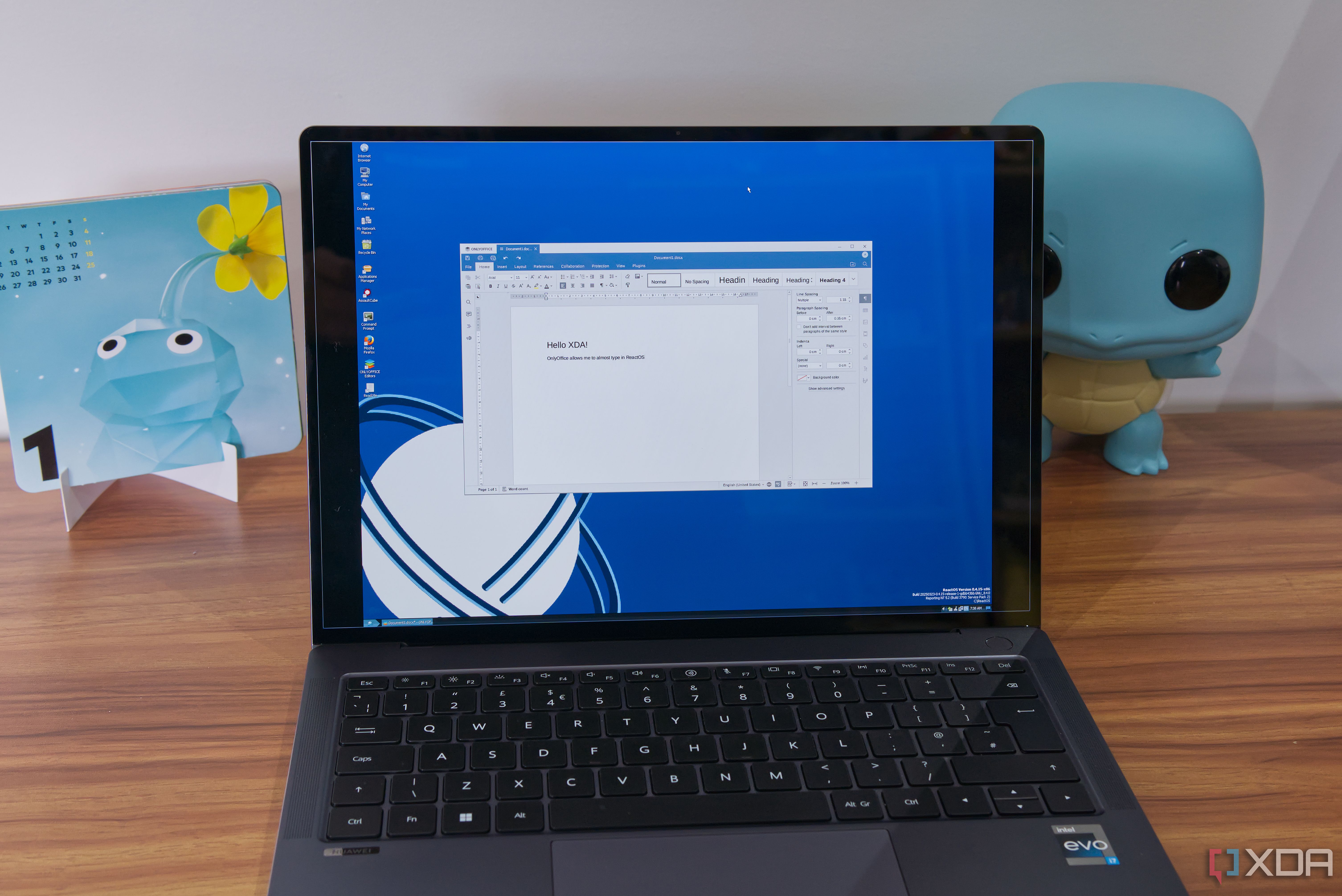
Upon first login, you will see a desktop that closely resembles Windows 2000/XP. ReactOS includes basic drivers for common hardware (IDE/SATA controllers, PS/2 keyboard/mouse, VGA display). For additional hardware (e.g., sound cards, network adapters), you may need to install drivers manually. Since ReactOS aims for Windows compatibility, you can often use legacy Windows drivers (XP/2000 era). Download them from the manufacturer's website and run the installer.

7. Installing Applications
ReactOS comes with a package manager called ReactOS Applications Manager (RAPPS). You can open it from the Start menu or desktop icon. RAPPS provides a curated list of free and open-source applications (e.g., Firefox, LibreOffice, 7-Zip) that are tested for compatibility. Simply select an application and click Install. You can also install Windows executables directly, though compatibility is not guaranteed for all software.
Common Mistakes and Troubleshooting
Mistake 1: Using UEFI Boot
ReactOS does not support UEFI or Secure Boot. If you try to boot the installer on a UEFI system, you will see a black screen or an error. Solution: Enter your BIOS settings and enable Legacy/CSM boot mode. Disable Secure Boot entirely. If your hardware does not support legacy boot, consider using a virtual machine instead.
Mistake 2: Insufficient RAM or Disk Space
ReactOS requires at least 256 MB of RAM and 2 GB of disk space. If you allocate less, the installation may fail or behave erratically. Solution: Verify that your virtual machine or physical hardware meets the minimum requirements. Increase RAM to 512 MB or more for smoother performance.
Mistake 3: Installing on NTFS without Proper Formatting
When partitioning, some users choose a file system but forget to format the partition. The installer will not proceed if the partition is not formatted. Solution: During the partition selection step, select the partition and press F (format) before pressing Enter to continue. The installer will warn you about data loss; confirm if the disk is empty.
Mistake 4: Network Not Working After Installation
Many network cards are not detected out of the box. Solution: Check the ReactOS Hardware Compatibility List (HCL) before installing. If your card is not supported, you can try a USB Wi-Fi adapter with known ReactOS drivers, or use a virtual machine’s emulated hardware (e.g., Intel PRO/1000).
Mistake 5: Assuming All Windows Software Works
ReactOS is still in alpha stage; many Windows applications may crash or fail to run. Solution: Always test software in a safe environment first. Use the ReactOS Applications Manager for vetted apps. If a program doesn’t run, check the ReactOS Bugzilla to see if a workaround exists.
Summary
ReactOS offers a compelling open-source alternative to Microsoft Windows, allowing users to run familiar applications and drivers on a free operating system. This guide covered the entire installation process—from setting up prerequisites and booting the installer to post-install configuration and driver management. By avoiding common pitfalls like UEFI incompatibility and insufficient resources, you can successfully deploy ReactOS on a virtual machine or legacy hardware. While still under development, ReactOS continues to improve compatibility and stability, making it an exciting project for enthusiasts and developers alike.