Exploring Ptyxis: The Modern Terminal with Container-First Design
Introduction
Ptyxis is a fresh take on the terminal emulator, built from the ground up with GTK4 and libadwaita to provide a seamless experience on the GNOME desktop. While traditional emulators like GNOME Terminal or Kitty rely on a standard tab bar, Ptyxis introduces a visual, activity‑oriented interface that mirrors the GNOME Activities overview. More importantly, it was designed with modern software development in mind—its standout capability is first‑class container support for tools such as Podman, Distrobox, and Toolbox. Already the default terminal on Fedora and set to become the default on upcoming Ubuntu releases, Ptyxis is rapidly gaining traction in the Linux community. After using it for several months, here are the features that make it a joy to work with.
Note: The screenshots in this article show a customized prompt. The default Ptyxis terminal looks different. You can grab the configuration from our GitHub repository or follow a video tutorial on terminal customization.
Tabs and the Visual Overview
A Richer Tab Management Experience
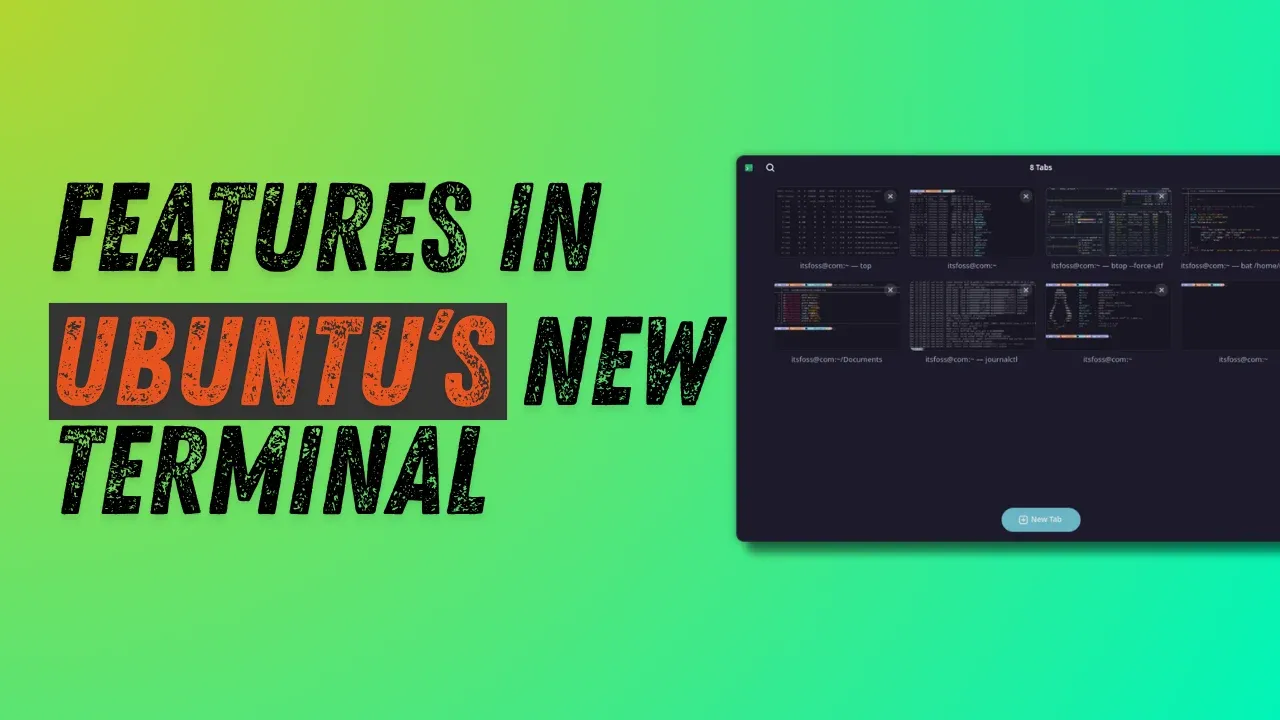
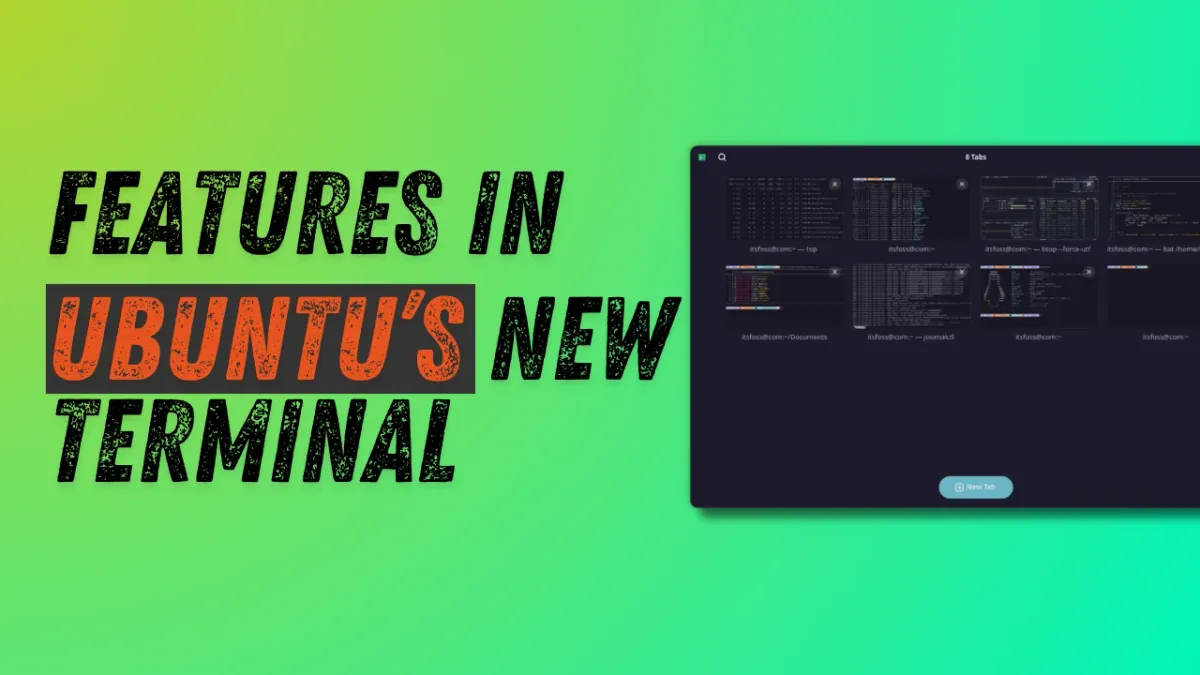
The first thing you’ll notice when you launch Ptyxis is its tab and overview system. Instead of a static row of tabs at the top, Ptyxis offers a button labeled Show open tabs in the upper‑right corner of the title bar. Clicking it opens an overview where each open terminal session is displayed as a card, complete with a window title and a small preview of its content. This makes it easy to see what’s running without switching back and forth.
Rearrange, Pin, and Rename Tabs
Within the overview, you can drag and drop tabs to rearrange them in any order. Pinning important tabs keeps them at the top of the list, always visible. The most powerful feature, however, is the ability to custom‑name your tabs. Right‑click a tab in the overview, choose Set title, and you can either prepend a custom name to the default process or create a completely custom title. Once named, you can use the search icon in the top‑left corner of the title bar to instantly find any tab by its name. This is incredibly helpful when you are juggling dozens of active terminal sessions.
Why This Matters
With multiple terminal windows open, the tab overview helps you quickly locate the right session—no more guessing by process name. It’s a small UX improvement that significantly reduces context‑switching friction.
Rich Color Scheme Support
Instant Theme Previews
Ptyxis includes a wide library of preset color schemes. To browse them, open the preferences window from the three‑dot menu in the top‑right corner. Under the Appearance tab, click Show all palettes. Each scheme is displayed with a live preview, and your choice is applied immediately. Whether you prefer a dark theme, a light theme, or something more exotic, Ptyxis makes it trivial to switch.
Customization and Consistency
The ability to change color schemes on the fly helps maintain a consistent look across your entire GNOME desktop. Since Ptyxis uses libadwaita, it inherits the system’s accent colors and respects the dark/light preference. You can also create your own schemes or import them from other terminals.
First‑Class Container Support
Work With Podman, Distrobox, and Toolbox
Ptyxis was built specifically to streamline container‑based workflows. It integrates deeply with Podman, Distrobox, and Toolbox. When you start a container, Ptyxis automatically opens a new tab or window inside that container’s environment, complete with the correct user namespace and mount points. The terminal recognizes the container context and adjusts the command prompt accordingly.
Seamless Switching Between Host and Container
You can launch a container session directly from the Ptyxis interface without leaving the terminal. The experience is so smooth that you often forget you’re working inside a container. This feature alone has made Ptyxis the go‑to terminal for developers who rely on containers for development environments.
Deep GNOME Integration
Because Ptyxis is built with GTK4 and libadwaita, it feels like a native part of the GNOME desktop. The terminal follows the same window decoration patterns, respects system theme changes, and works flawlessly with GNOME’s keyboard shortcuts. For example, you can use Super+T to open a new terminal window directly from the Activities overview. This integration reduces the visual clutter that often comes with third‑party terminal emulators.
Performance and Responsiveness
Despite its modern features, Ptyxis remains lightweight and responsive. The GTK4 rendering pipeline provides smooth scrolling and fast text rendering, even when working with large log files or complex terminal output. The application starts quickly and handles many open tabs without appreciable memory bloat.
The Road Ahead: Becoming the Default
Ptyxis is already the default terminal for Fedora Workstation, and Canonical has announced that it will replace GNOME Terminal in the upcoming Ubuntu release. This shift underscores the community’s confidence in Ptyxis’s design and functionality. As more distributions adopt it, users can expect even tighter integration with container tools and GNOME features.
Final Thoughts
Ptyxis is more than just a pretty terminal—it’s a carefully engineered tool that addresses the pain points of modern development. Its visual tab overview, rich color scheme support, and seamless container integration make it a pleasure to use daily. If you haven’t tried it yet, I highly recommend giving it a spin. You might find yourself shouting, “Why didn’t anyone think of this sooner?”